
User Manual
Find the right Fluid Base setting, understand what it changes, and see how to apply it. This manual covers setup, preset changes, typography, spacing and individual adjustments, with practical examples and answers to common questions.
Before you start: how Fluid Base applies your design
Fluid Base creates related font sizes and spacing from the starting values and growth you choose. They scale between your small-screen and large-screen widths. Zero growth keeps a scale fixed.
In Divi, a module is a content element such as text, an image or a Blurb. Rows arrange modules in columns, and Sections group Rows. You edit them in Divi’s Visual Builder. Fluid Base gives supported parts of these elements shared text sizes and spacing.
A Fluid Base preset is a starting configuration, separate from a Divi module preset. The supplied presets let you introduce Fluid Typography alone or combine it with shared spacing. You continue building and refining pages in Divi.
A variable is a reusable value with a name. An override lets Fluid Base control a supported setting, using a shared variable or a value you enter. Connected settings follow that value, while individual modules can have their own settings.
Guided setup in Divi 5
In WordPress, open Divi › Fluid Base. On a new Divi 5 installation, the guided setup asks whether this is a new or an existing website. A new website starts with Fluid Base – Fluid Typography & Spacing. For an existing website, choose how much of its design Fluid Base should control:
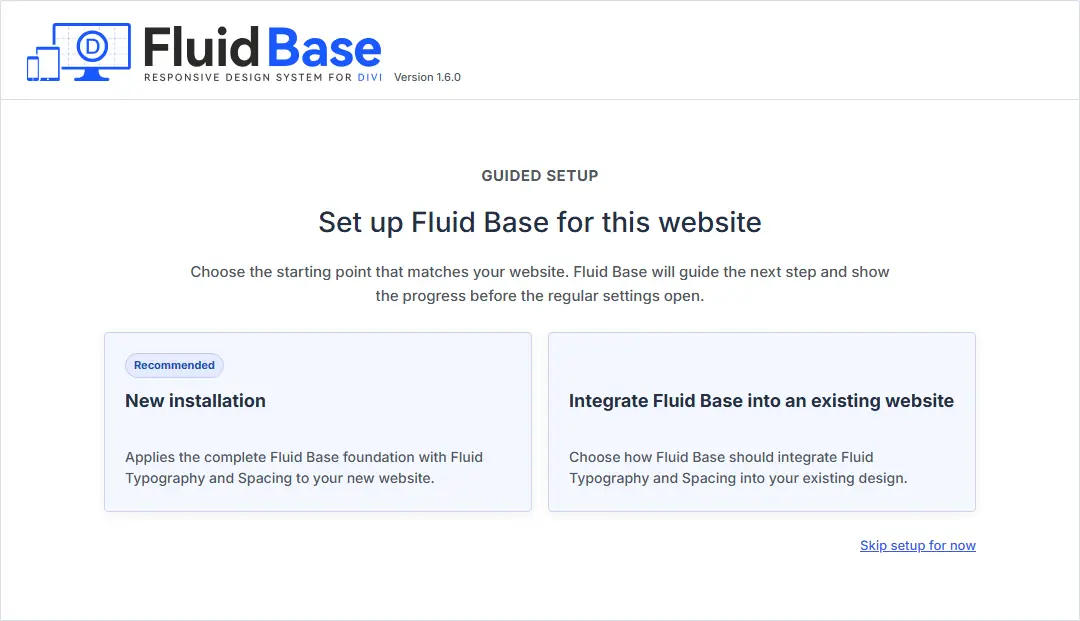
- Fluid Base – Fluid Typography updates supported text roles while leaving the shared spacing and layout system inactive. This is the recommended lower-impact starting point for an existing design.
- Fluid Base – Fluid Typography & Spacing also introduces shared spacing and layout rhythm. Existing layouts will most likely require manual adjustments to individual pages after it is applied.
- Start with your own settings selects Custom Setup – No Active Settings. Nothing is enabled until you choose it in Fluid Base.
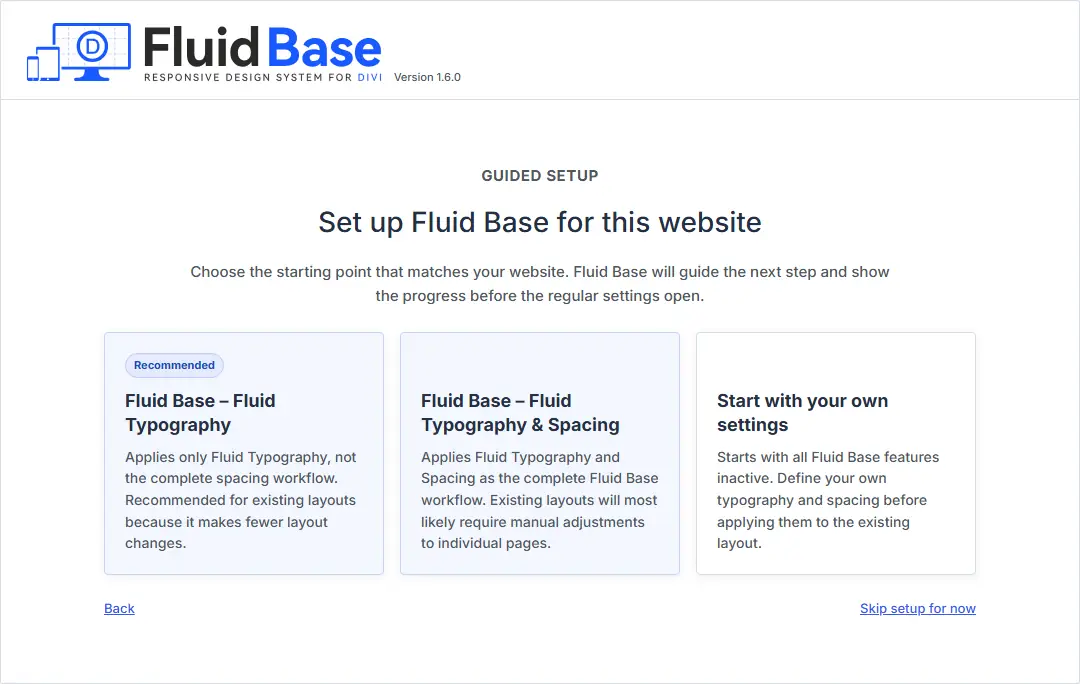
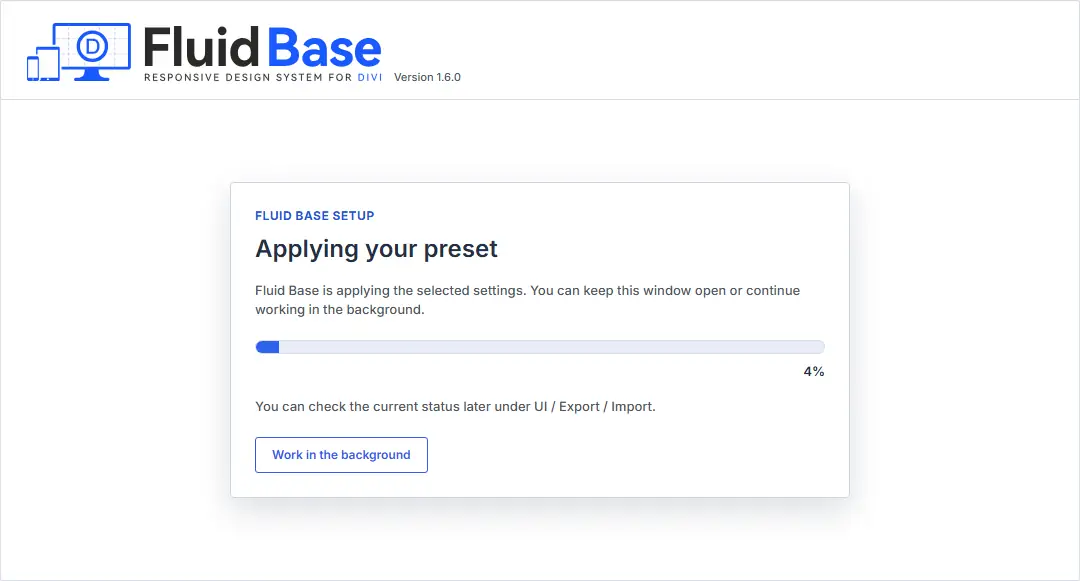
Before Fluid Base first changes a supported Builder field, it records the original value or that the field was unset. Later saves and manual edits do not replace this first backup. Override Sync connects those saved fields to the chosen Fluid Base settings. Follow the setup through to application and wait for the progress window to finish. Click Continue to Fluid Base to return to Setup, then reload the page before opening the Visual Builder.
Divi 4 starts directly
A first Divi 4 installation immediately uses Fluid Base – Fluid Typography & Spacing. Fluid Base applies it through CSS, the styling rules used by the browser, while saved page content stays unchanged. To choose a different starting configuration, follow Setup › Style.
Divi version differences
- Divi 4 does not accept CSS variables in native numerical fields and has no native Layout Gap control. Use Fluid Base’s supported overrides or custom CSS. Its controls for individual modules disconnect a whole group, such as Spacing, rather than one padding side.
- Divi 5 supports finer control over individual fields. Divi 4 modules in compatibility mode retain their Divi 4 rendering behavior. Use native Divi 5 modules for new pages.
In either version, custom column widths, positions and CSS may need their own phone and tablet adjustments. Check representative layouts after changing the shared design.
First setup: install, activate and apply changes
Install and activate
Start with Divi 4 or Divi 5 as the active WordPress theme, the Fluid Base ZIP and a WordPress account that can install plugins. For an existing website, read Before you start to understand what activation changes.
- In WordPress, open Plugins > Add New Plugin > Upload Plugin and select the Fluid Base ZIP.
- Click Install Now, then activate the plugin.
- Open Divi › Fluid Base › Setup. In Divi 5, follow the guided setup when it appears. Divi 4 starts directly with the complete Fluid Base preset.
After setup
Once the starting configuration has finished applying, reload the page before opening the Visual Builder, then check the result. For later changes to the starting configuration, see Setup › Style.
Check the result
Check one page of each layout type at phone, tablet and desktop widths. Look for small text, awkward line breaks, crowded or excessive spacing, and content extending beyond the page.
If several areas need the same adjustment, edit the relevant Setup panel and click its Save & Apply button. Each button saves the panel it belongs to. For a change to one module, follow Give one module its own settings. Clear the page cache and reload if the previous appearance remains.
Start with shared values, choose where to use them, then try the Blurb example to see how a module can follow the design or differ from it.
Start with the global settings
Open Setup › Fluid Base Setup. Fluid Scaling Range sets the browser widths between which values grow. Outside that range, they retain their small-screen or large-screen size.
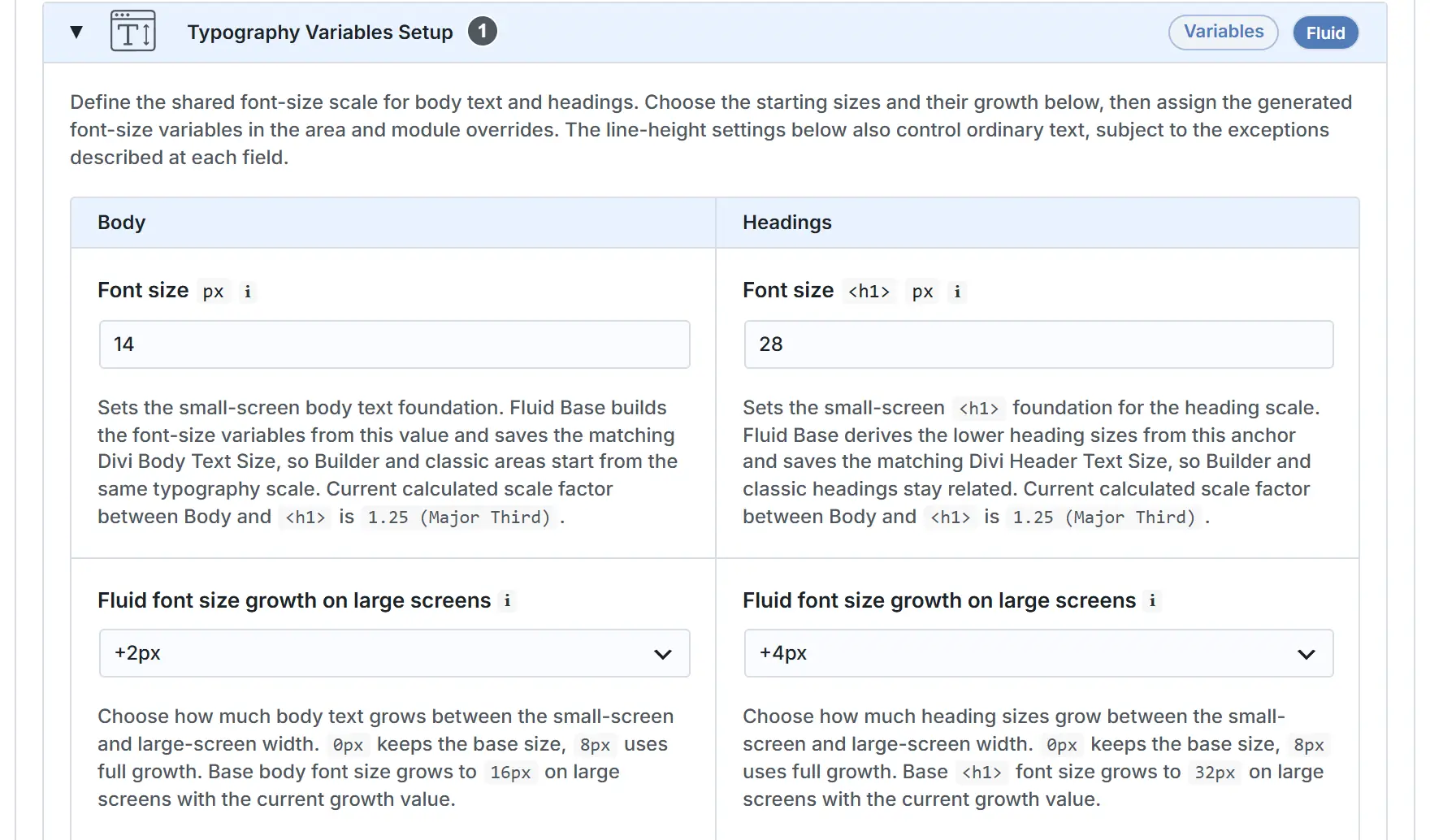
In Typography Variables at (1), set the starting font size and growth for ordinary Body text and the main H1 heading, then save. If text is too small on both phone and desktop, increase the starting size. If only desktop text is too small, increase growth. Compare both widths.
Define values once and reuse them
Fluid Base derives a family of named sizes from those settings. Connecting several fields to the same variable makes them follow the same value.
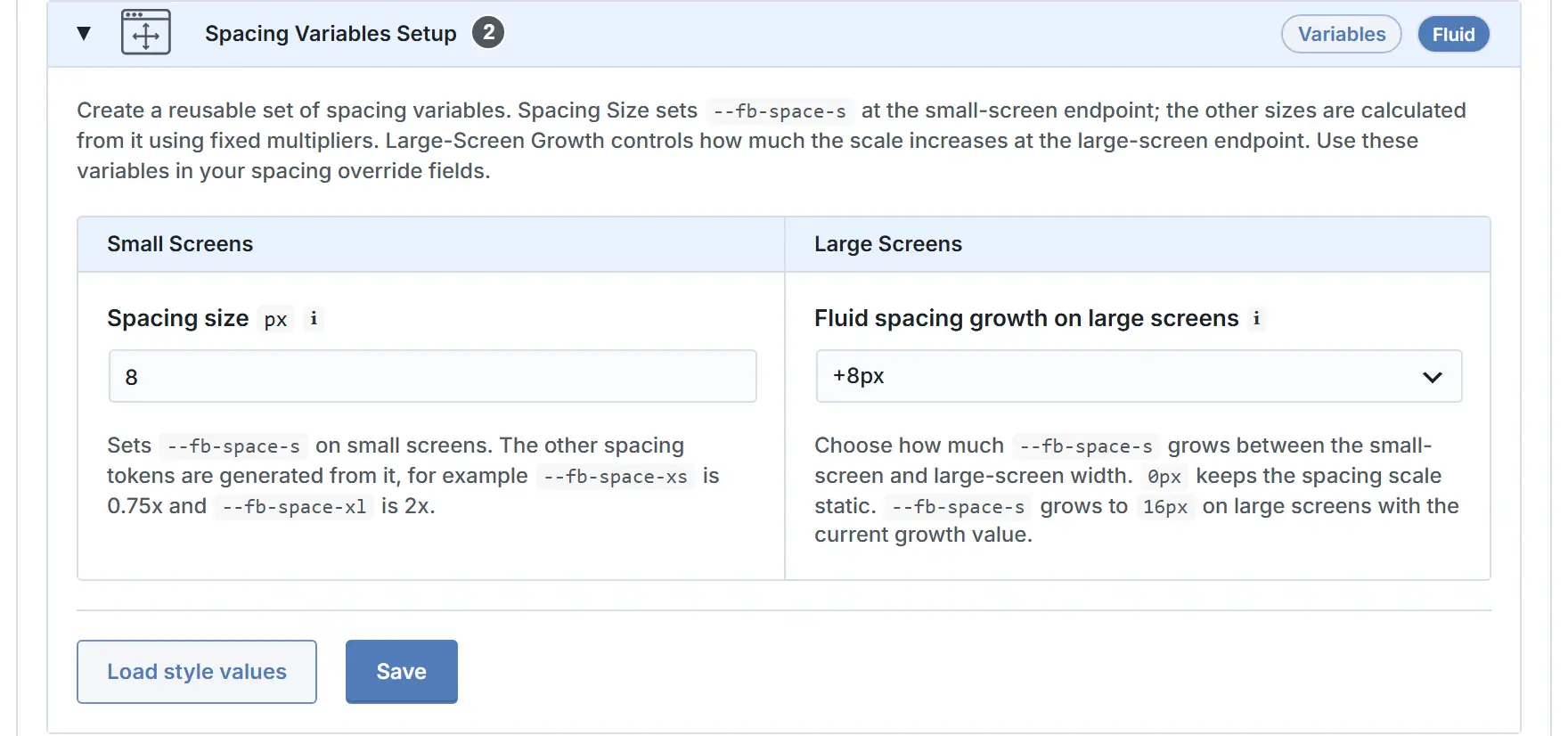
Spacing Variables at (2) works the same way. Set base spacing and large-screen growth, then click Save & Apply. The resulting variables are ready to use in Fluid Base settings and compatible Divi 5 fields.
Choose where the values apply
Builder areas use Divi modules, Sections and Rows. Classic areas come from the theme’s standard templates. One page can contain both, such as Builder content with a classic footer.
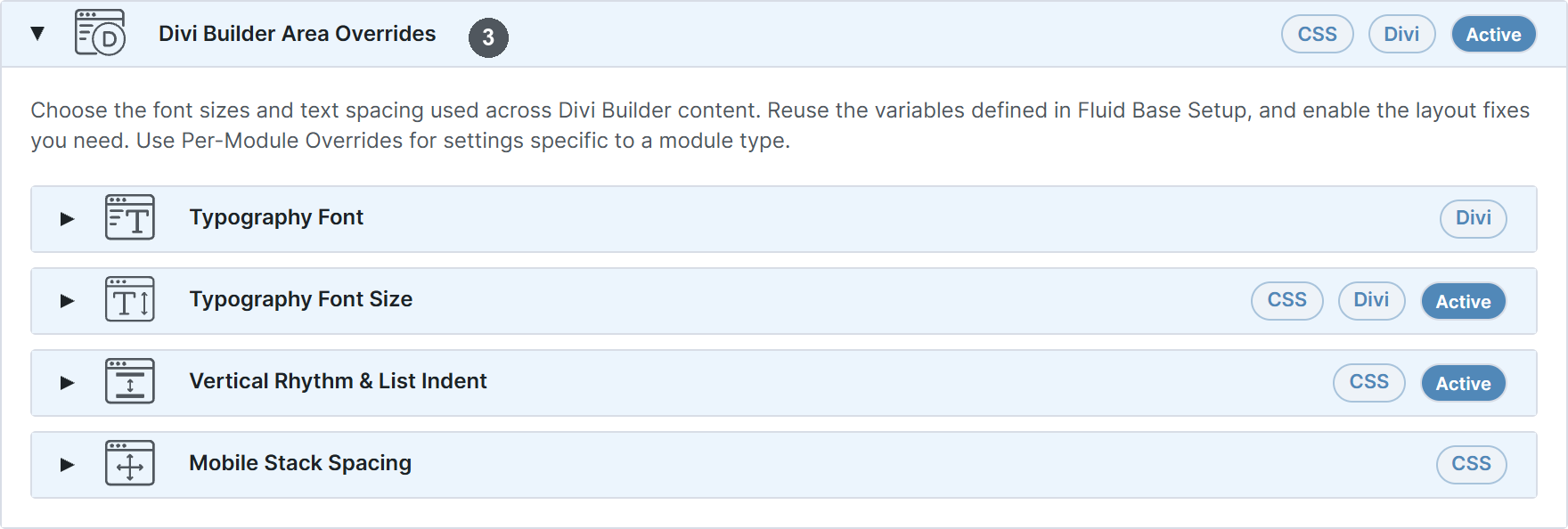
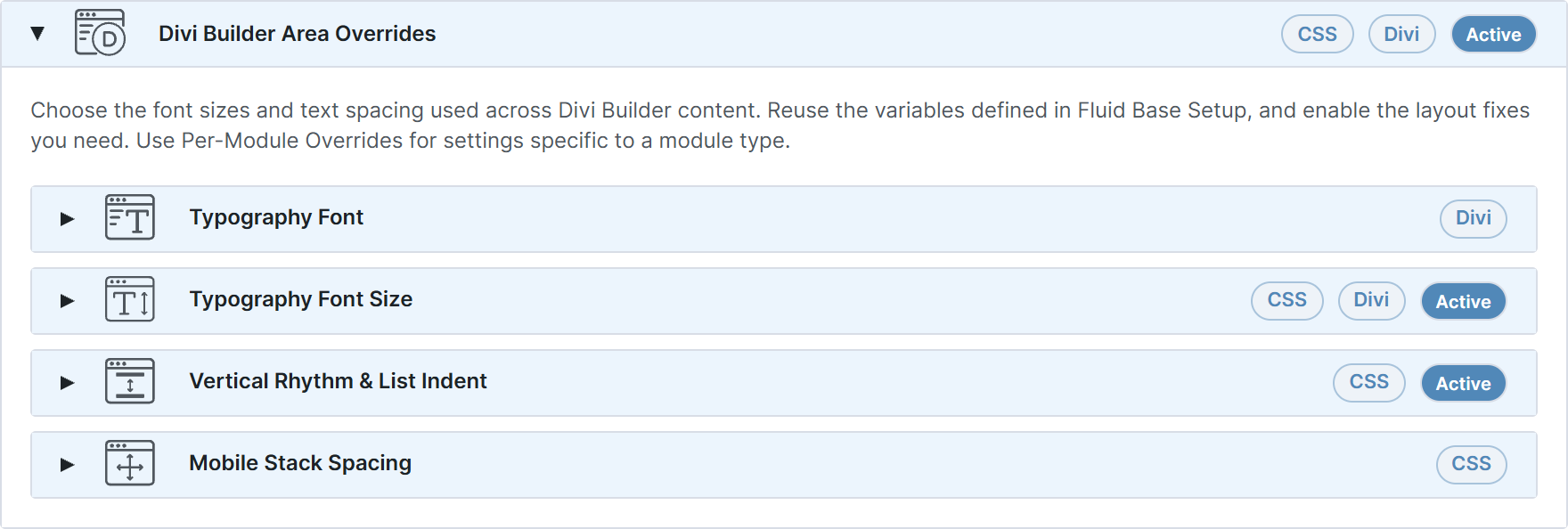
Divi Builder Area Overrides at (3) applies shared text spacing to Builder content and controls gaps when columns and modules stack on smaller screens. Its Typography Font Size panel also connects text settings in Divi’s Theme Customizer, the WordPress screen for global theme settings such as classic menu and footer text.
Classic Theme Area Overrides covers theme-rendered content, widgets, comments, forms, sidebars and footer spacing. A Theme Builder footer is a Builder layout, so its modules use Builder or Per-Module settings. Widget text inside a Divi Sidebar module has dedicated entries in Classic Theme Area Overrides › Typography Font Size.
Open the relevant panel, choose values, enable its override where provided, and click Save & Apply. The connected parts of the website now use your shared design.
Example: give Blurbs a shared starting point
Use a page with two new Blurbs, each with an image above its title and text. Save and exit the Visual Builder. You will give both shared settings, then change just one.
Open Divi › Fluid Base › Per-Module Overrides › Blurb. Changes here apply to new Blurbs and existing Blurbs that follow these settings. The supplied preset enables font sizes. Module spacing and inner element spacing each have their own enable control and Save & Apply button.
Shared text sizes
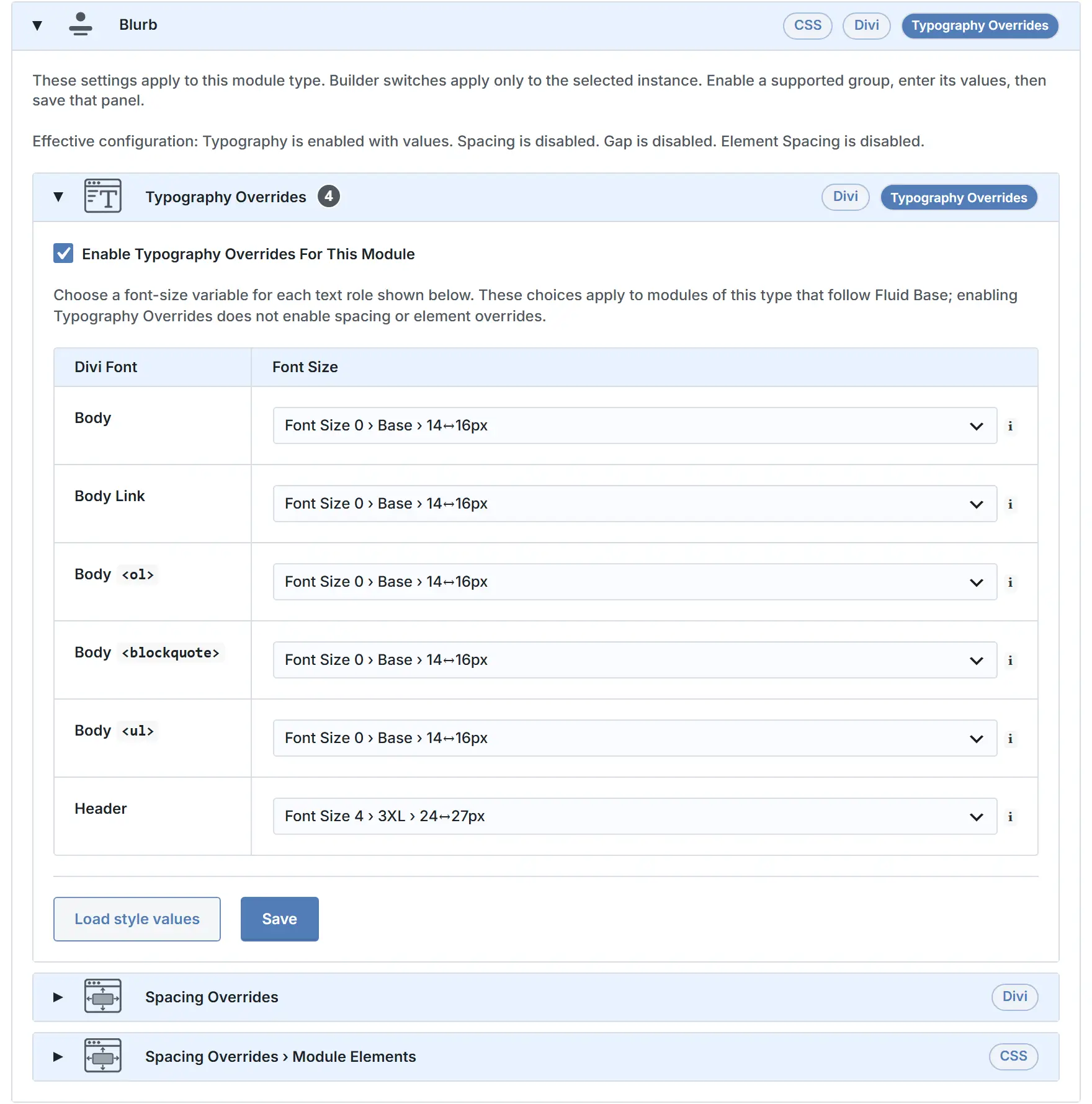
Enable Typography Overrides at (4). For Body, choose the option beginning Font Size 0 › Base. For Header in Divi 5 or Title <h4> in Divi 4, choose Font Size 4 › 3XL. Click Save & Apply. Both connected Blurbs now use these sizes. Compare their text on phone and desktop.
Space around the content
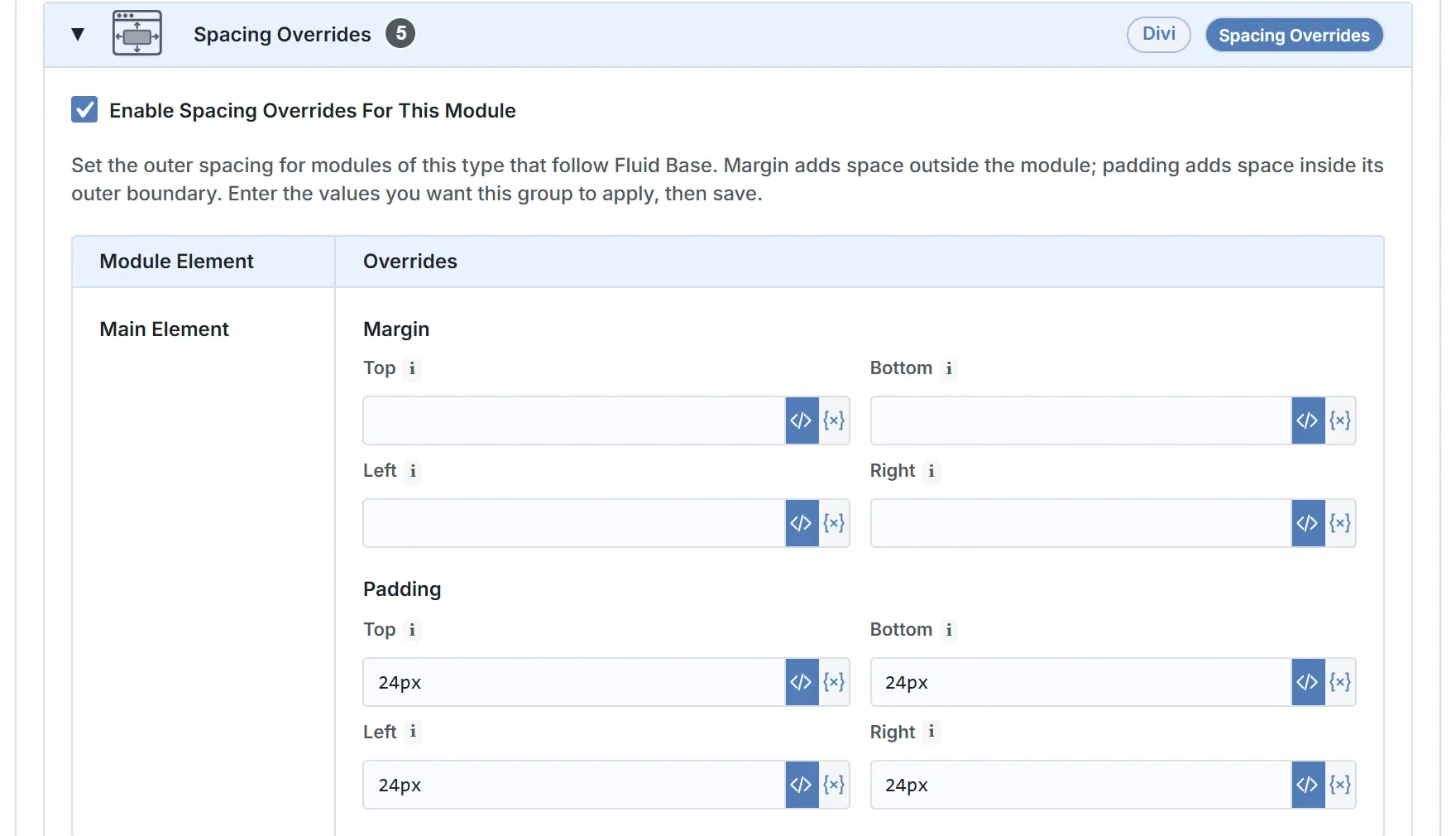
Enable Spacing Overrides at (5). Padding is space inside the module, while margin is space outside it. Select the code-brackets icon for CSS mode in the padding fields, enter 24px on all four sides and click Save & Apply. Each Blurb now has 24 pixels of space around its content.
Space between the parts
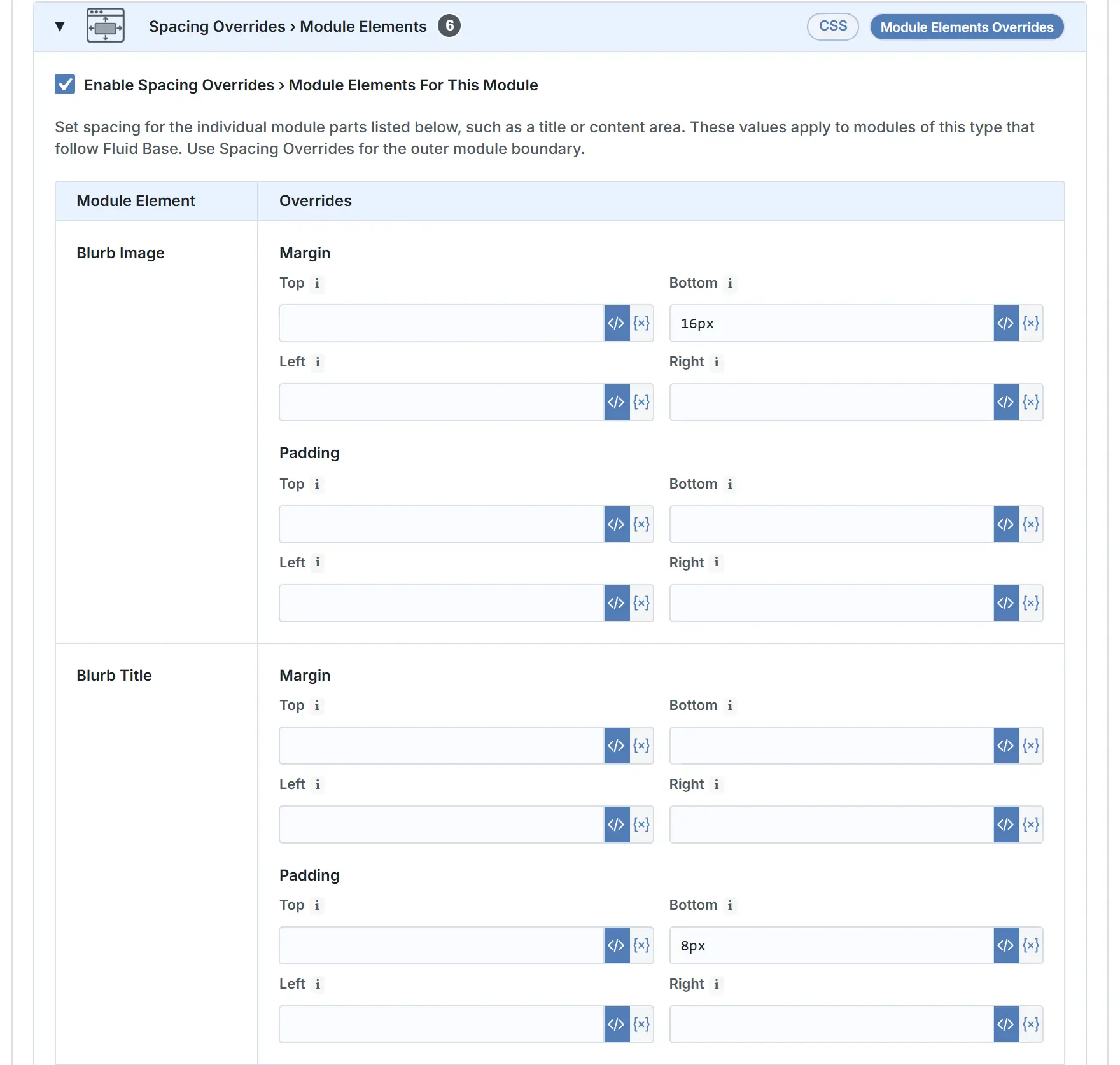
Enable Spacing Overrides › Module Elements at (6). Set Blurb Image Bottom margin to 16px and Blurb Title Bottom padding to 8px. Click Save & Apply, then reload before reopening the Builder. Compare the image-to-title and title-to-text gaps on phone and desktop. These distances are separate from the outer padding.
Give one module its own settings
These steps continue the two-Blurb example. For another module, select that module and use its corresponding controls.
Select the first Blurb in the Visual Builder. Open its Fluid Base controls with the FB icon in Divi 5 or the floating Fluid Base button in Divi 4.
Divi 5: change one value
In the Blurb’s own padding settings, replace Top Padding with 40px and save the page in Divi. Leave the other sides unchanged. This Blurb has more space above its content, while its other fields and the second Blurb retain their settings.
Divi 4: change one group
Switch off Spacing in the selected Blurb’s Fluid Base controls. In its own padding settings, enter 40px at the top and 24px on the other sides. Save the page. Only this Blurb’s module spacing is disconnected. Typography, inner element spacing and the second Blurb remain as configured.
Return to the Fluid Base value
In Divi 5, reopen the Blurb’s Fluid Base controls. For Top Padding, choose Replace My Value with Fluid Base to replace the custom 40px. In Divi 4, turn Spacing back on in the selected Blurb’s Fluid Base controls. Save the page in Divi and compare both Blurbs: the first now follows the shared padding again.
To return a Divi 5 field to its recorded original, open that module’s Fluid Base controls. The action is labelled Restore Previous Value when a usable original value was recorded, including an empty value. This uses the same field backup as Restore Everything and deliberately replaces any later manual value in that field. Otherwise, the action is labelled Reset to Divi Default, which removes the local value so Divi can use its native settings. Without a usable backup, this cannot recover an earlier value. Save the page in Divi after choosing the action. Ordinary saves and sync still protect later manual changes.
Frequently Asked Questions
Find the setting for a common adjustment below. Each answer identifies the panel to save and the part of the page to check.
Setup Page
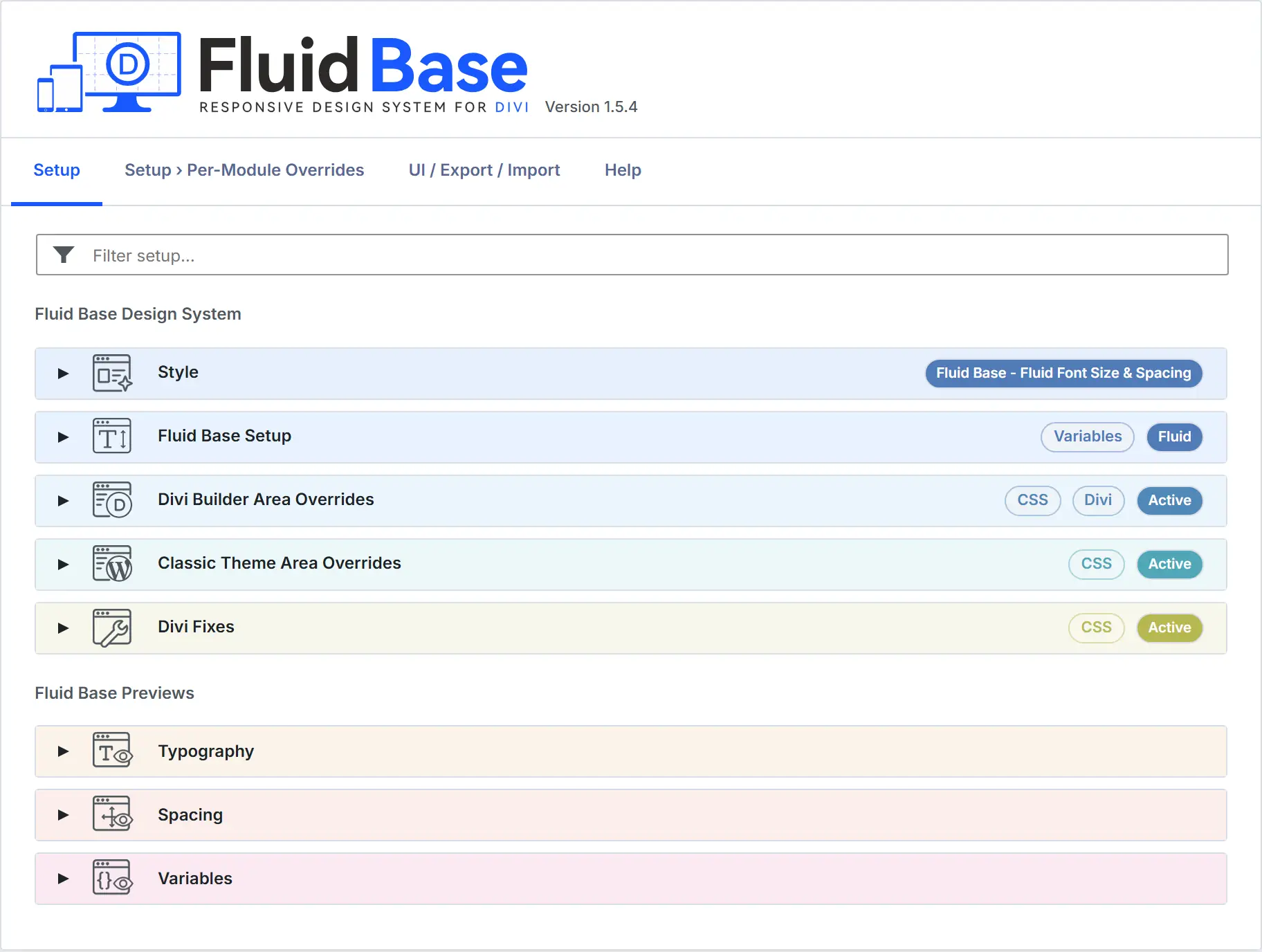
Open Divi › Fluid Base › Setup. Define shared values in Fluid Base Setup, then connect them through Area Overrides. Use the previews to see the resulting sizes. Save the panel you change before checking the page.
Style

Choose between Divi-Like – Fluid Typography, Divi-Like – Fluid Typography & Spacing, Fluid Base – Fluid Typography, Fluid Base – Fluid Typography & Spacing, and Custom Setup – No Active Settings. The Divi-Like pair stays closer to Divi’s original proportions, while the Fluid Base pair uses the Fluid Base foundation. Typography variants leave the shared spacing and layout system inactive.
Applying a preset replaces the Fluid Base configuration. Divi 5 also updates supported saved Builder fields while preserving later individual changes. In Divi 4, saved page content stays unchanged. Export your current configuration first if you want to keep it. Save and exit the Visual Builder, select the preset, then click Replace settings & saved Builder values and confirm in Divi 5, or Replace settings in Divi 4. The selection takes effect through this button. Wait for completion, then reload the page before opening the Builder and check the result.
In Divi 5, switching to a preset that controls fewer settings returns the fields it releases to their recorded Divi values, provided they still follow Fluid Base. Later individual changes remain. To turn off the shared design while keeping Fluid Base available, use the neutral setup below.
Switch from Fluid Base to a neutral setup
Custom Setup – No Active Settings turns off the supplied Fluid Base effects while leaving the plugin available for your own setup. This is the neutral starting point in the preset list. Applying it replaces your Fluid Base configuration.
- Save and exit the Visual Builder. Save any Fluid Base panel changes to keep, then export the configuration.
- Open Divi › Fluid Base › Setup › Style and select Custom Setup – No Active Settings.
- In Divi 5, click Replace settings & saved Builder values and confirm. In Divi 4, click Replace settings. Wait for the change to finish.
- Open Fluid Base again and check the selected preset. Reload the frontend and the Builder, then compare a representative text area, Section and Row. Clear the page cache if it still shows the previous appearance.
In Divi 4, the shared overrides stop and saved page content stays unchanged. In Divi 5, supported fields still connected to Fluid Base return to their recorded values when released. Later individual changes, local exceptions and custom CSS remain in place, so existing pages keep those parts of their design.
Enter a fixed value or choose a variable
Supported spacing fields offer CSS and Variable modes. Use the code-brackets icon for a value such as 24px, or the variable icon for a shared size. Switching modes restores the last input in that mode. Save & Apply retains both inputs and applies the selected mode. An empty variable selection returns to CSS mode.
Load style values loads the active preset's values into this panel without saving. Info buttons explain formats and empty values. The Variables preview lists the generated names.
Fluid Base Setup
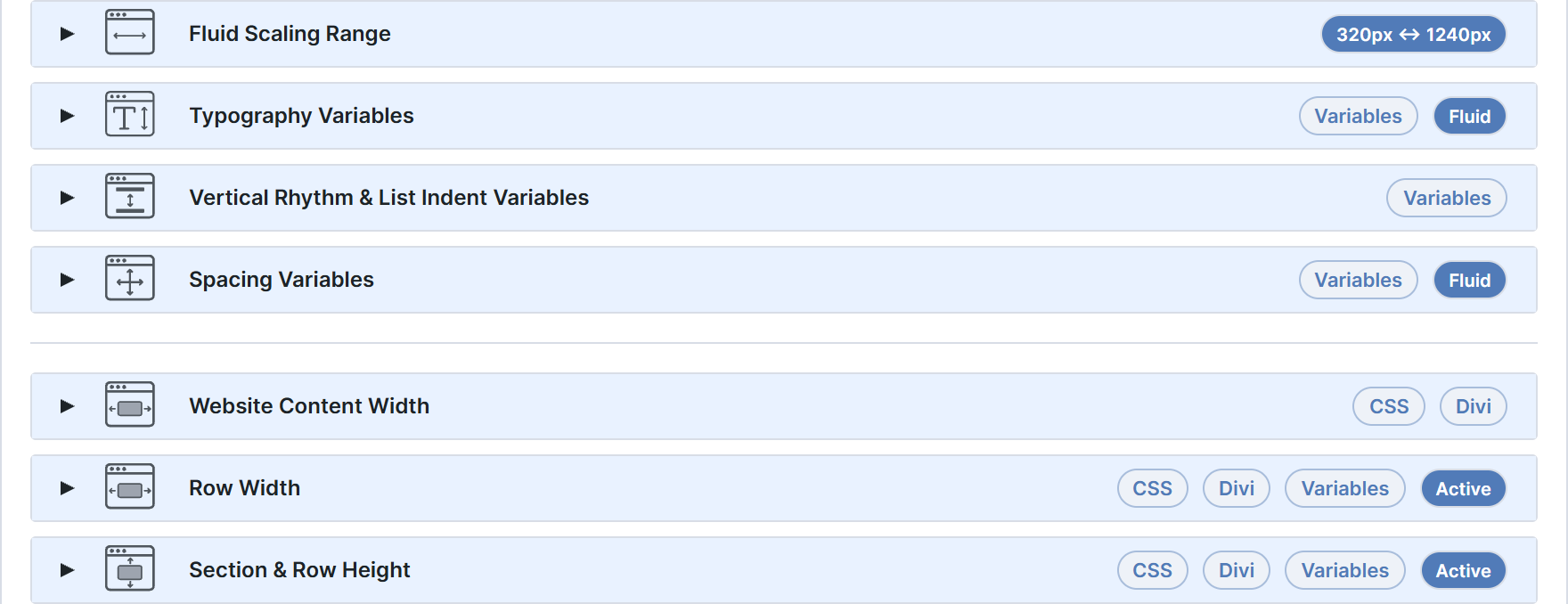
These panels define the shared values available throughout Fluid Base. The variables remain available when an area or module override is off. You can define a scale here, then choose which parts of the website should use it.
Fluid Scaling Range
Set where fluid growth begins and ends. Below the minimum, values stay at their small-screen size. Above the maximum, they stay at their large-screen size. Adjust growth in Typography Variables or Spacing Variables to change the difference between those sizes.
Typography Variables
Body defines ordinary and smaller supporting text. Headings derives connected <h1-6> sizes from the H1 starting size and scale curve. Enable the Body or Heading Line Height override only when Fluid Base should replace Divi’s corresponding global line height. Set the values, click Save & Apply, then compare the Typography preview and representative page text. A module's own Divi settings can take precedence.
Vertical Rhythm & List Indent Variables
Define spacing between text elements, list indentation and table cell padding, then click Save & Apply. Assign the values in the Builder or Classic Vertical Rhythm & List Indent panel and save that panel as well. Check the affected text on the page. Field hints and preview diagrams explain each distance.
Spacing Variables
Base spacing and growth produce related spacing sizes. Choose these variables wherever distances should follow the shared scale, or use fixed CSS values where needed. Save and compare the Small Screens and Large Screens previews, then check the page.
Website Content Width
Sets the maximum width of the content area. Website applies to the main content area. Header and Footer inherit that value unless their own override is enabled. Enter whole numbers from 320 to 1920.
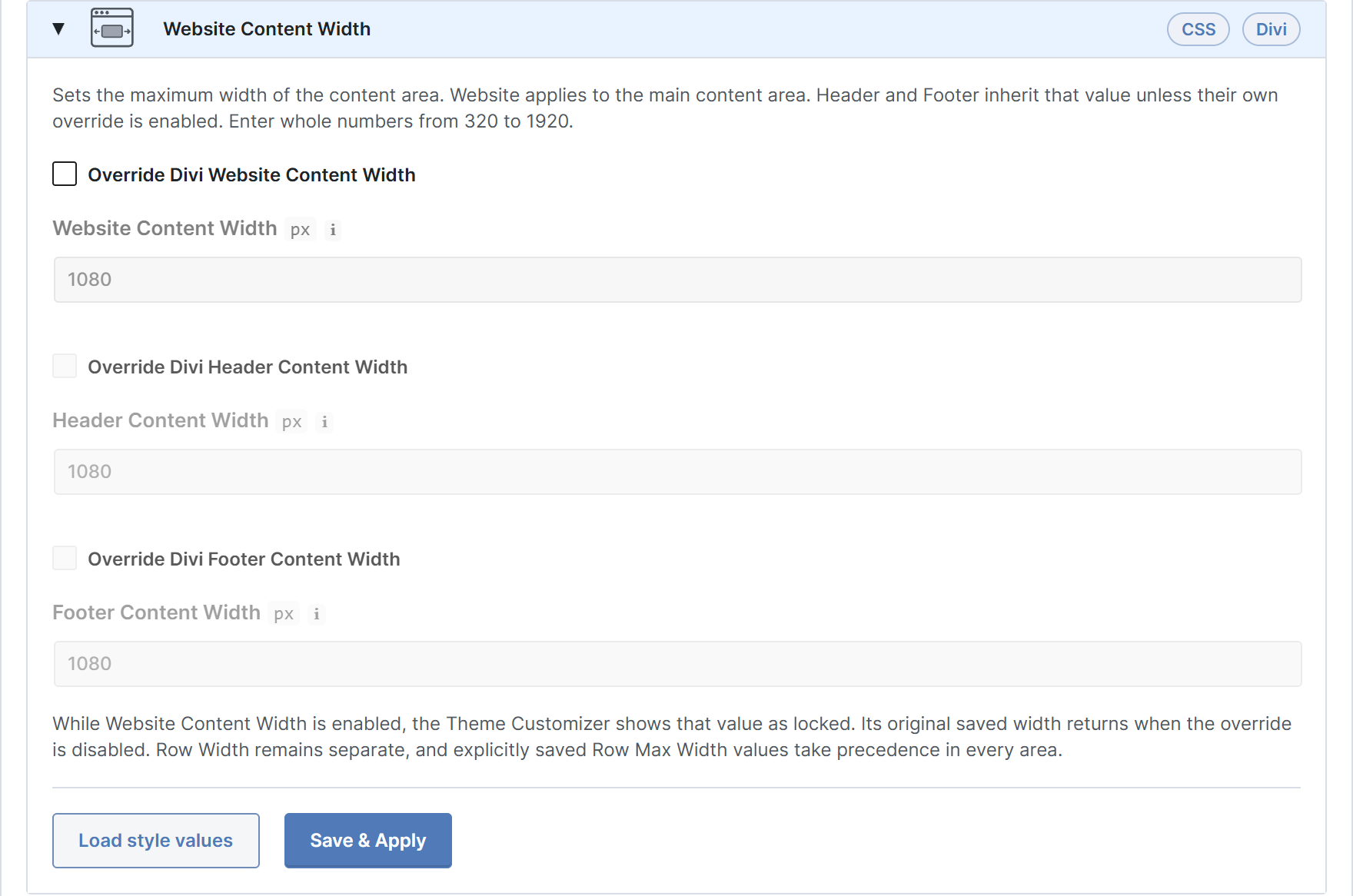
- Open Setup › Fluid Base Setup › Website Content Width, directly before Row Width. Enable Override Divi Website Content Width and enter the maximum width in whole pixels.
- Header and Footer inherit that maximum. To set either separately, enable its additional override and enter a value. Both controls are unavailable while the Website override is off.
- Click Save & Apply and check classic and Builder pages on phone and desktop.
The Theme Customizer locks its effective width while Fluid Base controls it. Disabling the override restores the original Divi value. In sidebar layouts, the maximum covers content and sidebar together. Nested Rows keep native sizing.
A Row's own Width or Max Width still takes precedence, including responsive and Hover values in Theme Builder headers and footers.
For example, you can keep the main content narrow for reading while allowing a wider header for a longer menu. Enable the Website override first, then the Header override. Footer content continues to inherit the Website maximum unless you give it a separate one too.
Row Width
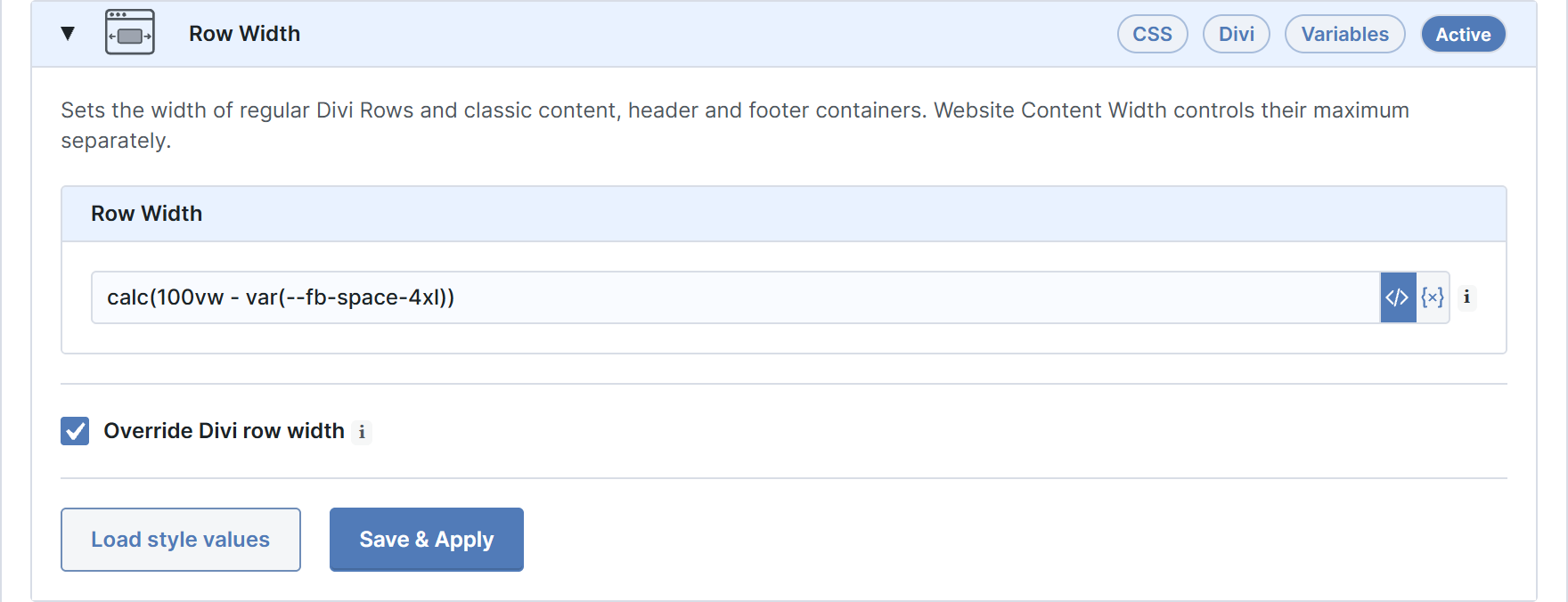
Row Width sets regular Row and classic container widths. Website Content Width sets their pixel maximum. For example, 80% with a 1080px maximum grows with available space until reaching 1080px.
Open Setup › Fluid Base Setup › Row Width. Enter a CSS width, enable Override Divi row width and save.
Row Width accepts a percentage or another supported CSS value. Nested Rows keep their native sizing, and a Row’s own Width or Max Width takes precedence. Check ordinary and nested Rows on phone and desktop. The maximum is set separately in Website Content Width.
Section & Row Height
These values control top and bottom padding around content, not a fixed height.
- Open Setup › Fluid Base Setup › Section & Row Height and choose the padding values.
- Enable Override Divi section and row height and the required Auto-Apply areas.
- Click Save & Apply and check the space above and below content on phone, tablet and desktop.
Auto-Apply gives the selected areas the central padding values. While active, it locks the affected padding fields and Spacing switches in Per-Module Overrides. Their saved values remain available. Classic content, sidebar and footer widget areas can also follow the central values.
To use a module type's padding again, disable Auto-apply to all Section and Row modules and save. Then check and save Per-Module Overrides › Section or Row. If its saved values match the central ones, the appearance will not change.
Turning off Override Divi section and row height stops Auto-Apply and restores recorded Customizer values where backed up. Active module overrides then continue to apply their own settings.
Divi 4's native desktop rules target ordinary Rows, with inner Rows also covered on tablet and phone. Divi 5's rules target Block Rows, including nested ones, not Flex or Grid Rows. An individual module can still use its own settings.
Divi Builder Area Overrides
Typography Font
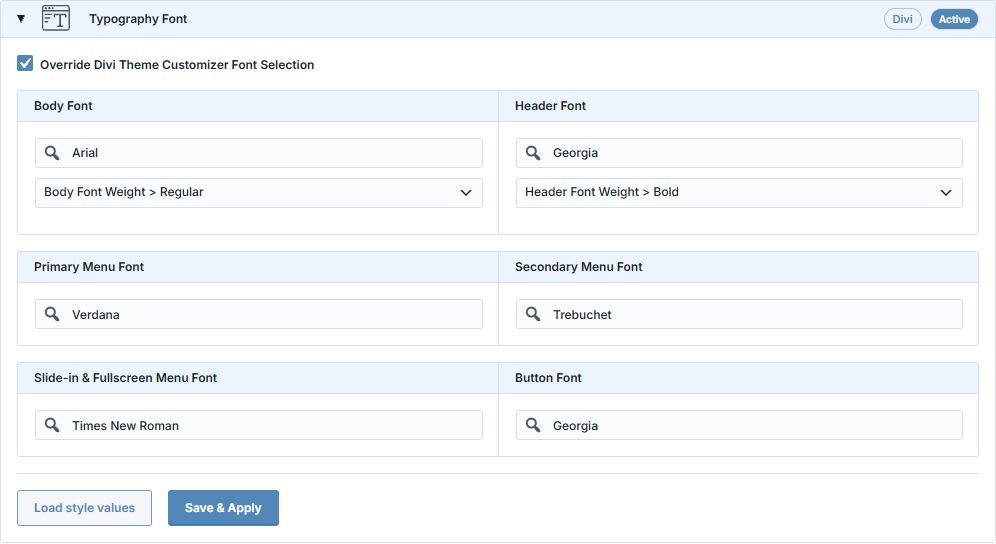
Open Setup › Divi Builder Area Overrides › Typography Font, the first panel in this group. With the override off, the menus show Divi’s current Theme Customizer values. Fluid Base only displays them and keeps its saved selections unchanged.
Enable Override Divi Theme Customizer Font Selection to start from the current Divi values. Choose or search the fonts. Set Body Font Weight directly below Body Font and Header Font Weight directly below Header Font. Each weight menu controls its matching Theme Customizer setting. Click Save & Apply, then reopen the panel to check the saved values. Fluid Base controls all six font selections and both font weights together. Their Theme Customizer controls are greyed out and locked while the override is active.
To return control to Divi, disable the override and click Save & Apply. Fluid Base restores the Customizer values recorded before activation and shows them again. An individual No override choice keeps the current native value under Fluid Base’s control. Default Theme Font uses Divi’s default font. Export saved configuration as a preset starting point.
Typography Font Size
Use Typography Font Size to assign shared sizes to native Divi text roles, including classic menu and footer text. Save the panel. The original Customizer values remain available when shared assignments are not used.
In Divi 5, No override leaves the matching Divi font-size setting unchanged. Text can still follow another active Fluid Base typography assignment that applies to the same area.
Vertical Rhythm & List Indent
Choose and enable shared text-spacing values for Builder areas, then save and check a text module. Change Variables Setup to adjust the value everywhere it is used. Change its assignment here when only Builder text should differ.
Mobile Stack Spacing
Enable shared gaps for stacked modules and collapsed Row columns on tablet and phone. Empty fields retain Divi's spacing. Save and check a layout that stacks. For direct modules inside Divi 5 Flex columns or Flex groups, use the matching Layout Gap instead.
Classic Theme Area Overrides
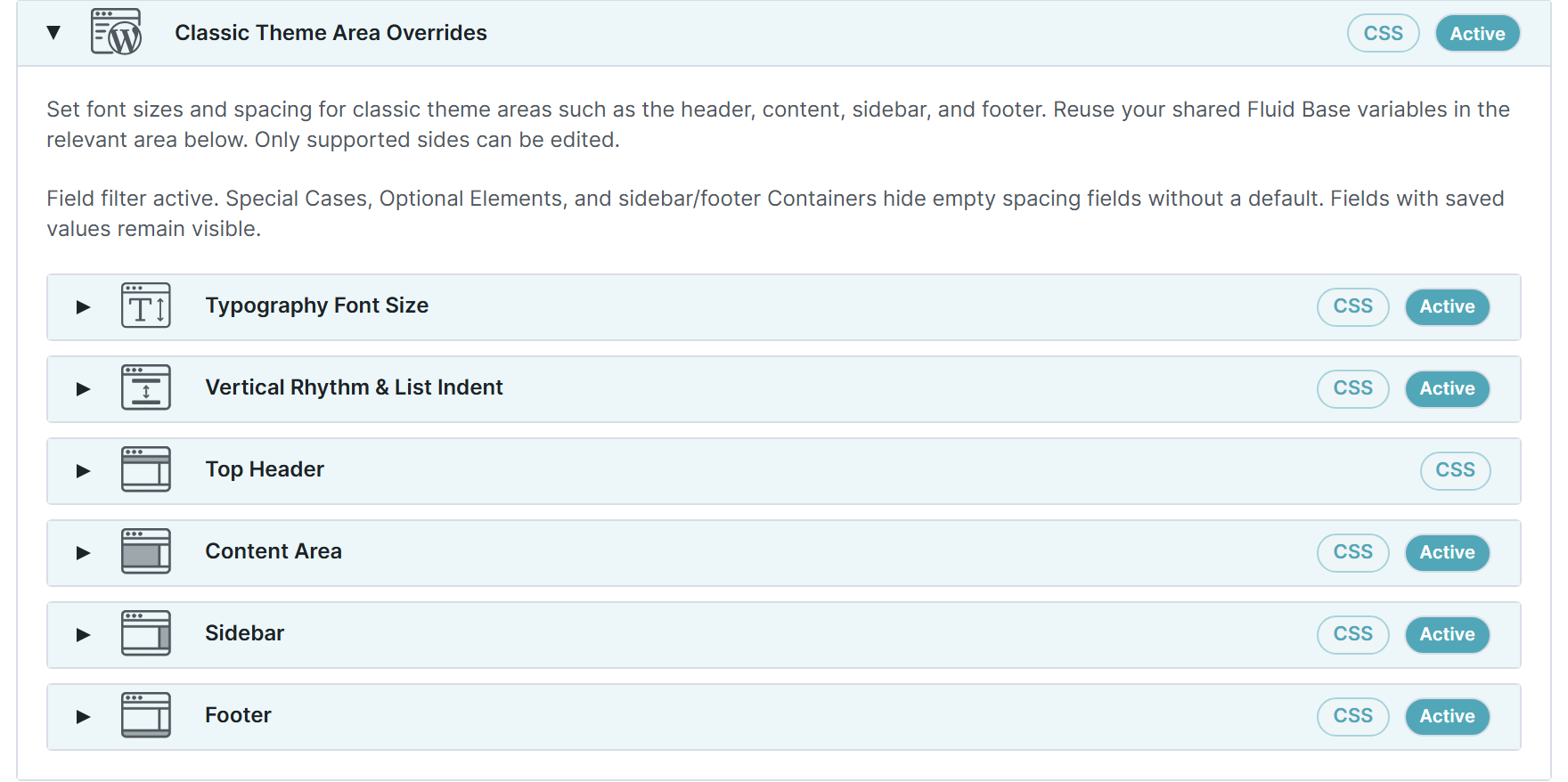
These panels cover supported theme-rendered content, widgets, comments, forms, sidebars and footers. Theme Builder layouts use Builder or Per-Module settings. Widget text inside a Divi Sidebar module also has entries here.
Typography Font Size
Assign shared Typography Font Size and Vertical Rhythm & List Indent values, enable the relevant override and save. The UI lists supported targets. Classic menu and global footer typography are grouped under Divi Builder Area Overrides.
The same heading level can have different assignments for content, widgets or footer text because those are different parts of the website. Fluid Base also supplies line height where the Theme Customizer does not reliably control that text. Native controls keep the line height required by their own layout.
Top Header controls outer padding. Divi Fixes controls spacing between its contact details, menu and social icons. Content Area controls the classic content shell and columns, separately from text rhythm. Its Builder single-post bottom-spacing option applies only to classic single-post templates without a Theme Builder body, outside the Visual Builder.
Sidebar controls its own padding and widget spacing. The content-to-sidebar gap is in Content Area. Footer separates outer spacing from widget, navigation and bottom-bar spacing. Footer Bottom Spacing Reset in Divi Fixes takes control of bottom-bar vertical padding and disables the overlapping field here.
Save the panel you adjust and check desktop and stacked layouts. Field hints explain each distance and what an empty value does.
WooCommerce Area Overrides

Assign shared typography to Divi's native shop, product-category and product-detail templates, then save. Check both product lists and detail pages where affected. For layouts built with Divi Woo modules, use Per-Module Overrides instead.
Divi Fixes
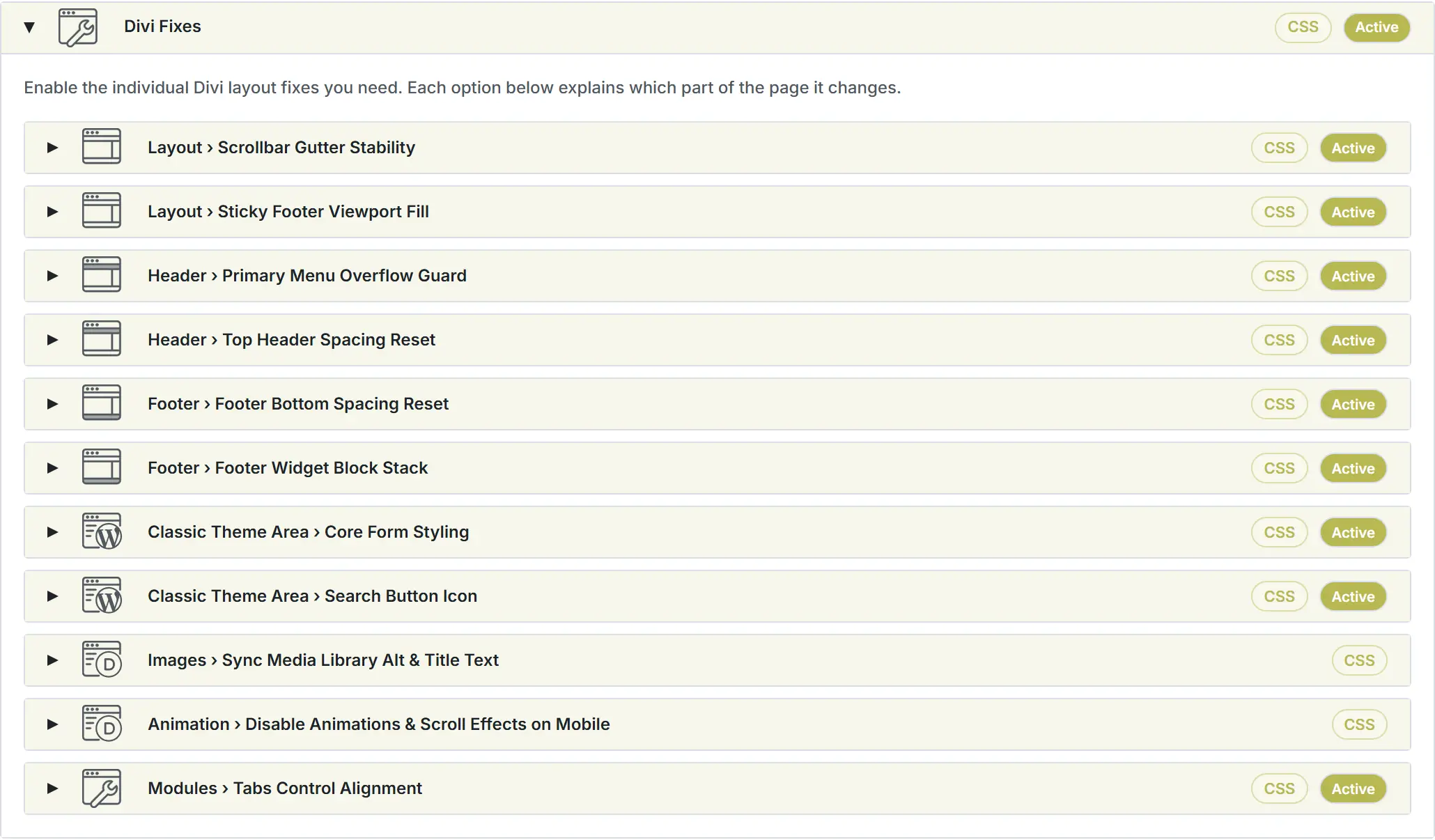
Enable a fix for the issue it describes, adjust any values, click Save & Apply in its panel and check the affected page. Info buttons explain exact scope.
Page and text fixes address scrollbar stability, short-page footers, classic theme forms and text wrapping. Balanced text is native in Divi 5.9 and newer, so Fluid Base provides that option for Divi 4.
Header and footer fixes address spacing between groups and icons. Outer top-header padding remains in Classic Theme Area Overrides. Matching top-header height to the footer also follows its desktop social-icon sizing.
Tabs Control Alignment keeps Tabs navigation labels centered and contained. It is active in every supplied Fluid Base or Divi-Like preset and remains off in Custom Setup – No Active Settings.
WooCommerce Area › General Fixes groups small corrections for native WooCommerce output, beginning with balanced Store Notice padding. It is available when WooCommerce is active and is enabled by the two Typography & Spacing presets.
The mobile top-header cart fix requires WooCommerce. It moves the cart right and hides top-header social icons. After saving, check the cart and any secondary menu at phone width.
Media Library alt/title sync applies an image's current alternative text and title from the WordPress Media Library to matching images on the website, including generated sizes. Alternative text describes the image for readers who cannot see it. Empty alt text stays empty, and an empty title removes the title attribute. The update applies to the displayed page. Saved Builder values and previews, along with external images, stay unchanged.
In Divi 5, Disable Animations & Scroll Effects on Mobile stops configured effects up to the mobile breakpoint while keeping desktop effects. Check phone, tablet and desktop.
Fluid Base Previews

At the end of Setup, compare Typography and Spacing at small and large screen sizes. The Variables preview lists reusable names. Use these previews after saving, then check the actual page.
Per-Module Overrides
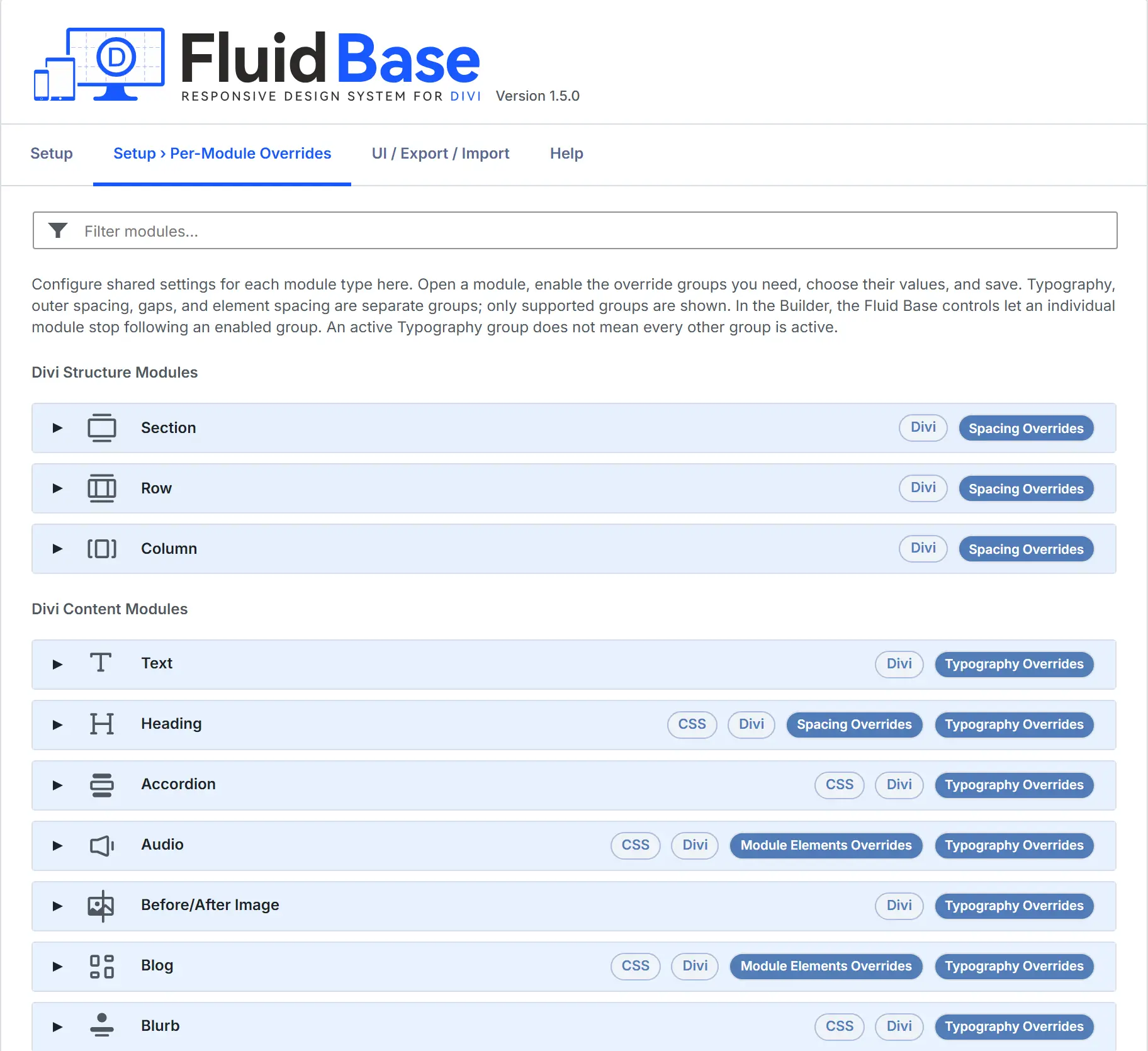
Use Per-Module Overrides to give a module type shared settings. For example, the Blurb card controls connected Blurbs across the website. Follow the Blurb example for shared settings and an individual exception.
How module cards work
Typography assigns shared text sizes. Spacing sets outer margin and inner padding. Module Elements controls named parts within a module. Divi 5 also offers Layout Gap where supported.
Each group has its own enable control and Save & Apply button. Load style values fills that panel with the active preset's values, ready for you to adjust and save. Leave a margin side empty to retain Divi's spacing. Field hints explain other empty values.
For module text roles with Divi’s heading-tag choice, Typography offers a separate size for each H1–H6 level. Choose the heading tag in Divi. Assign the same size to all six levels to keep that size when the tag changes.
For font sizes, No module override leaves the matching module field unchanged. In Divi 5, text can still follow an active Fluid Base typography assignment for the surrounding area. Review the matching Area Overrides when deciding which shared text sizes should apply.
The card lists the groups supported by that module type. Enable the group you want to use, choose its values and click Save & Apply. Reload the page before opening the Builder, then check a representative module.
For Cart Totals, Body spacing also affects the Shipping Calculator labels. Open the calculator to review that spacing.
Cart Products Column Label and Header Row, and Cart Totals Column Label do not offer margin controls: Divi's native table layout does not apply margins to these parts.
Audio Play/Mute offers Left and Right padding. Top and Bottom stay disabled in the four-side control because vertical padding on these inline icons does not visibly change the layout.
Some controls are omitted where the property has no visible effect on that part in Divi's native layout. If only some sides apply, the other positions stay grey. For example, top and bottom margins do not move inline text in Divi 4; its left and right margins remain available. Divi 5 can render the same part differently, so the available sides can differ.
Checkout error notices are not shown inside the Billing module, so Billing has no notice controls. Layout Gap appears only for supported layouts that can separate items. A button's text and icon alone do not provide that layout.
Checkout Order Details table cells and NextGEN Tag Cloud links do not offer margins because they use a native table-cell layout. Overlay Right/Bottom margins, Comments Avatar Bottom margin and Pricing Currency Bottom margin are omitted where native absolute positioning leaves them without a visible effect. Their other supported sides remain available.
In Divi 4, Audio Timer Top/Bottom padding stays disabled because the native timer clips that space. Divi 5 keeps these controls.
Values retired in every supported Divi version are removed and cannot be enabled again by importing an older file. Shared values that still apply in another supported Divi version are retained for that version.
In Divi 4, Woo Notice Button margin and padding take priority over Title and Title Link spacing on the same button.
In Divi 4, Portfolio and Filterable Portfolio use their own module cards. Portfolio card settings do not apply to Filterable Portfolio modules; use the Filterable Portfolio card for them.
For Pricing Tables, a set Featured margin or padding value takes priority over the general value on Featured plans. An empty Featured value uses the general value for that property. If neither value is set, the remaining styling applies. Normal plans use the general values.
Typography, Spacing and Module Elements work independently. A Blurb can use shared font sizes while keeping its Divi padding. To add shared padding, enter the values in its Spacing group, enable the group and click Save & Apply.
Structure Modules
Section, Row and Column settings include their matching nested variants. For central top and bottom padding, use Section & Row Height. Disable module Auto-Apply and save before configuring Section or Row padding separately in Per-Module Overrides.
Content Modules
Open a card to see its available text roles, inner elements and gaps. The UI is the detailed reference for your Divi installation. Other modules can use variables in compatible fields or custom CSS. Gravity Form and Imagely Gallery entries appear when their integrations are active.
The module card defines shared settings for the whole type. The Builder's Fluid Base window shows how the selected module uses them, including any individual values. To return a module to the shared settings, follow Give one module its own settings.
See Divi version differences for compatibility-mode modules and Divi 4 controls. Classic content, sidebar and footer spacing belong in Classic Theme Area Overrides.
UI / Export / Import / Sync
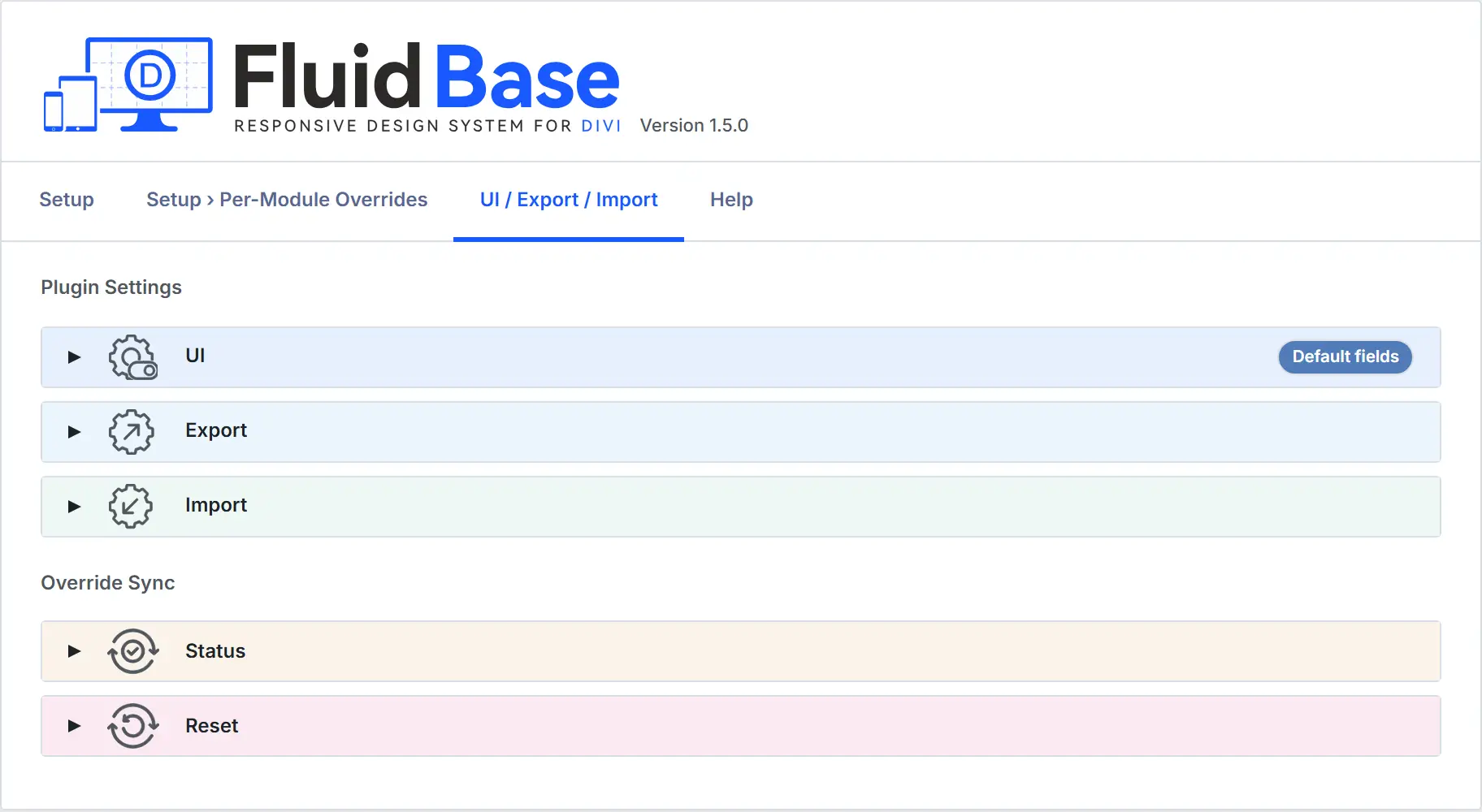
Open Divi › Fluid Base › UI / Export / Import / Sync for display preferences, configuration backups and repair tools.
Change the admin display
UI Max Width in the header sets the width of the Fluid Base settings screen for the current browser. This display preference stays separate from the website design and exported configuration. Widen the browser window if the menu is hidden.
The UI options control optional admin information. The field filter limits optional Classic Theme spacing fields to those with preset defaults or saved values. Turn it off to see all supported fields. Info icons provide field details, and Close all Panels collapses the panels.
Export the configuration
- Save any panel changes to include.
- Open UI / Export / Import / Sync › Export and click Export.
- Keep the downloaded JSON as a configuration backup.
The JSON file contains Setup, UI preferences, Per-Module Overrides and retained CSS/Variable inputs. Import it to recover those Fluid Base settings. To recover earlier page content as well, use a full website backup.
Import a configuration
Import applies a saved Fluid Base configuration from a JSON export, replacing the current plugin settings. In Divi 5, it also updates related Divi settings and supported saved Builder fields while preserving later individual changes and exceptions. In Divi 4, it changes shared styling and related settings while saved page content stays unchanged.
- Save and exit the Visual Builder. Export the current configuration first if you want to keep it.
- Open UI / Export / Import / Sync › Import, choose the backup in JSON File and click Import.
- Wait for the import progress to finish, then open Fluid Base and check the imported settings.
- In Divi 5, check Override Sync › Status for completion. Reload the page before opening the Builder, then check the result.
If the file is rejected, the error identifies what needs changing before it can be imported. Choose a valid Fluid Base JSON export and import it again. If an error interrupts application, follow the message and use Try again when offered.
In Divi 4, if a failed operation cannot continue because its settings have changed, open UI / Export / Import / Sync and choose Keep current settings and stop. This ends that operation and allows another import or preset choice. It keeps the current settings, including any values already applied; it does not undo the import or run its remaining steps. Check your settings and the website afterwards.
Check or reset Override Sync
In Divi 5, Override Sync shows progress, completion or errors after an import or full preset replacement.
If the progress popup stays open, Setup opens automatically with the saved settings after successful completion. Choose Work in the background to continue without an automatic page change. Errors stay visible so the operation can be retried.
If the Visual Builder was already open while Override Sync wrote saved values, wait for sync to complete, then reload the Builder before changing or saving modules. Its open view may still hold older values.
Use Reset Override Sync when you want the supported fields it manages to use the current Fluid Base settings again. This can replace manual font-size, line-height, spacing and gap values, along with individual control states in those fields. Save a full website backup first if you need to recover those individual edits. Recorded originals remain available for deactivation restore.
- Save and exit the Visual Builder.
- Open UI / Export / Import / Sync › Reset. Click Reset Override Sync, then Apply current Fluid Base values?
- Check the result and sync status. Reload and compare affected modules before adding new individual settings.
Repair missing font-size connections
Repair Module Ownership restores missing connections between shared font sizes and supported modules. Use it when a module shows a Divi font size even though its Fluid Base typography and Font Size Sync are active. Font Size Sync is the connection that lets supported module fields follow their shared size. Repair keeps manual values and individual exceptions.
- In Per-Module Overrides, open the affected module card and check that Typography Overrides is enabled with a shared font size selected. In the Visual Builder, open the selected module's Fluid Base controls and check that typography is connected to Fluid Base. These settings identify whether a shared connection is expected.
- Save and exit the Visual Builder.
- Open UI / Export / Import / Sync › Reset and click Repair Module Ownership.
- Check the completion or error message and, in Divi 5, Override Sync. Reload and inspect the affected font size.
Deactivation / Cleanup
The backups hold individual field values, not complete pages. A recorded empty value returns as empty. A field that was originally unset is removed. Each backup belongs to its original module: moving that module keeps its backup, but deleting it and adding another at the same place does not transfer the backup to the new module.
Save and exit the Visual Builder before deactivation. Export the Fluid Base configuration to keep its settings. Save a full website backup if you need to recover page content and individual edits as well. In WordPress › Plugins, click Deactivate for Fluid Base and choose:
- Restore Everything restores all original Builder field and Divi values from the backups Fluid Base currently stores, including backups for fields it has already released. Later manual values in those fields are replaced with their recorded originals. Fields without a remaining original backup cannot be reset to an earlier value. In Divi 5, restoration also applies to content in the trash. Posts stay in the trash. To remove fields that still depend on Fluid Base variables, also select Remove Fluid Base completely.
- Deactivate Only keeps settings, Divi variables and saved Builder values. Fluid Base stops generating CSS while inactive.
- Remove Fluid Base completely is off by default. When selected, Fluid Base attempts to restore recorded originals and remove supported Builder field values that still use its variables, including values in global presets and calculations. It continues past values it cannot safely change and reports them at the end. Fluid Base also removes its own variables, settings and backups wherever possible and continues with deactivation. Remaining references may stop working, and deleted backups are no longer available. Plugin files stay installed until deleted through WordPress.
- Cancel or Escape leaves the plugin active.
In Divi 5, Restore Everything also removes known Fluid Base variable references from saved revisions and autosaves. These entries remain available. Complete removal also clears field values that use Fluid Base variables inside calculations and removes Fluid Base's own technical markers, even when they contain no variable reference. Other saved values and variables belonging to other tools stay unchanged. Where an entry has no stored original, removing a Fluid Base reference lets Divi use its native inherited value.
In Divi 5, Restore Everything without complete removal waits for Cleanup complete. Deactivation continues. and returns to Plugins. An error stops that restore and retains recovery data. An original for a deleted module or one that cannot be identified unambiguously stays saved and can stop restore and deactivation. Repeating the restore does not resolve an unchanged missing or ambiguous module assignment. Choose Deactivate Only to keep the saved states, or Remove Fluid Base completely for best-effort cleanup with a report. Complete removal instead continues through the available cleanup steps and shows a final report, including values that could not be removed. The report remains available after confirmed deactivation and can be downloaded. Open plugin management to delete the plugin files through WordPress. Check the reported deactivation status and representative pages. Deactivate Only and ordinary Divi 4 deactivation return directly to Plugins. Once its saved state has been removed, the next Divi 5 activation starts the Setup Wizard as a fresh installation.
If a caching plugin or host still serves the old appearance, clear that cache and reload.